

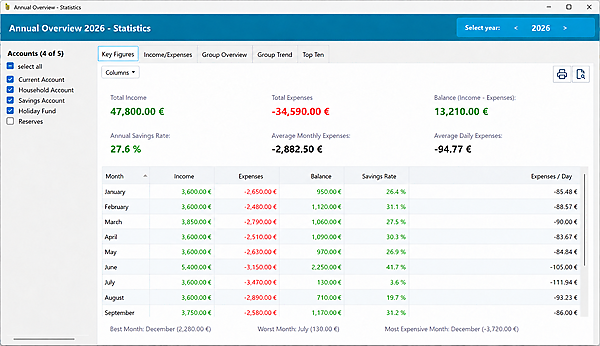
How does your household budget develop over the year? Which expenses have the biggest impact? And what does the overall picture look like when you manage several accounts? MyMicroBalance 6.5.0 makes these questions easier to answer.
Redesigned annual reports give you a clearer overview and more ways to customise the views on your Windows PC. The update also includes a more efficient CSV import, clearer guidance for damaged files and important fixes for recurring transactions. A new diagnostic tool helps you narrow down possible causes of balance discrepancies after synchronisation.
If you manage several accounts, you know the extra work involved: getting the full picture means comparing individual reports and adding up the figures. With the new multi-account analysis, VIP users can select one or more accounts to review together in the annual statistics and annual charts.
For example, you can see how your household finances develop across several accounts. Matching groups are combined automatically: "Household > Groceries" appears as one expense group when the full group path matches across the selected accounts. Subgroups with the same name under different parent groups remain separate, so unrelated expenses are not mixed together.
Without a VIP licence, reports continue to cover the current account.
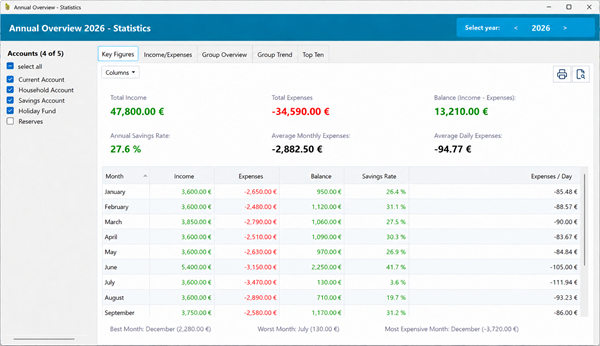
The redesigned annual statistics help you spot trends more quickly. The five familiar sections remain: Key figures, Income/Expenses, Group overview, Group trends and Top Ten.
Income, expenses, balance, savings rate and averages are clearly arranged. The best, worst and most expensive months show which periods deserve a closer look. The most expensive month is the one with the highest expenses. If there is no positive income, a dash is shown for the savings rate.
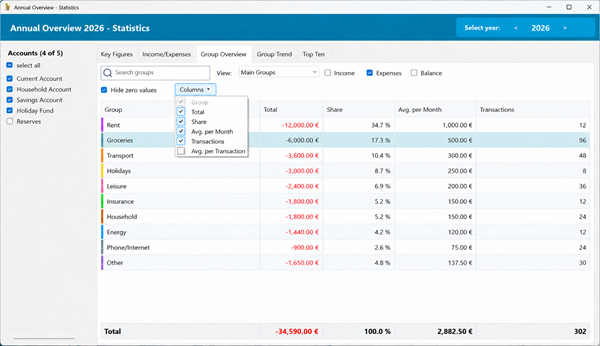
You also have more choice when exploring the details. You can display every month, focus on months with transactions or show only months with a negative balance. The month filter does not change the annual total. Percentage shares also show how much each group contributes to your total income or expenses.
You can sort tables, adjust column widths and view groups by their hierarchy. Zero values can be hidden when they are not needed. VIP users can also search for groups and show or hide columns. This lets you tailor the view to the question you want to answer, whether you need a quick annual review or a comparison of particular areas of spending.
Your preferred view is ready the next time you open the file. The annual statistics remember settings including your account selection, last tab, sorting, column widths and visibility, month filter, group depth and Top Ten mode. These view settings are saved locally with your balance file and are not synchronised between devices.
When you print a report, printing and print preview take your selected filters and visible columns into account. Colour highlights help you distinguish positive and negative values. You can therefore share or file the exact report you have put together.
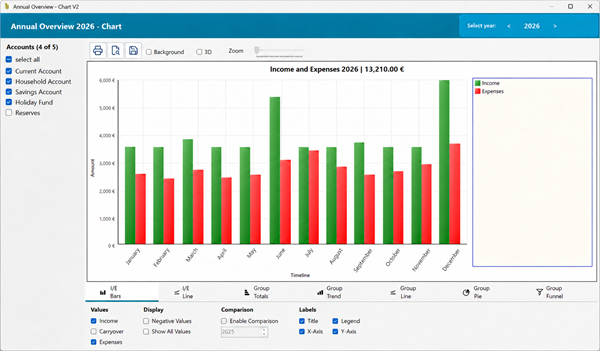
In the annual charts, seven chart types are accessible directly through tabs. Whether you want income and expenses as bars or lines, group trends over time or a pie chart showing their distribution, you can reach the right view with fewer navigation steps. More compact controls leave extra room for the chart itself.
The familiar customisation options remain available. Depending on the chart type, you can include groups, subgroups and labels, for example. Year-to-year comparisons and 2D/3D views are still supported.
For documents and presentations, you can now save charts as PNG by default. This keeps chart labels particularly sharp and easy to read. JPEG remains available. Your account selection, last tab, and 3D and background settings are saved locally with your balance file.
When analysing accounts together, transfers remain included in the income and expense totals. If both accounts involved are selected, the transfer entries cancel each other out in the balance.
If you import many transactions from a CSV file, you benefit from more efficient processing. The preview and navigation between steps avoid unnecessary repeated processing. During the final import, monthly balances are updated in a batch rather than recalculated after every transaction.
There is also a practical improvement when checking your data: edits you have already made are preserved when you move back and forward between steps without changing the import settings. You can check an earlier step without having to make your corrections again afterwards.
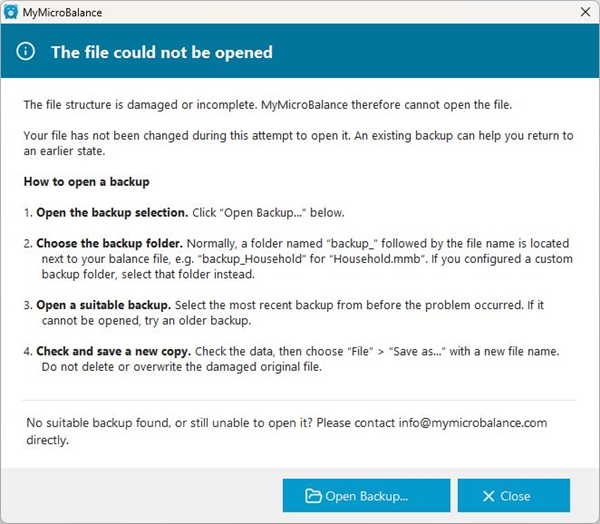
An error message should help you work out what to do next. MyMicroBalance now distinguishes more clearly between an incorrect password and a damaged file structure.
If a file is damaged, a new dialog explains the situation and guides you through opening a backup step by step. "Open backup..." takes you straight to the file picker. The corresponding default backup folder is preselected if it exists; you can also choose another folder yourself. If a backup is damaged too, you can then select another one.
If different balances are still reported after synchronisation, a new diagnostic tool helps you look for the cause. You can see which accounts and months are affected and which differences can be identified between your PC and the online server.
Is a transaction missing on one side? Does an amount differ? Has an expense been recorded as income on the other side? Where possible, the dialog compares the transactions concerned. Differences in categories, descriptions and transfer links can also provide clues. The comparison takes income, expenses, transaction counts and balances into account.
A compact monthly overview makes it easier to find your way around. Discrepancies that are simply carried forward from earlier months are given less prominence and can be shown additionally when needed. If no specific transaction differences are found, the dialog states this explicitly.
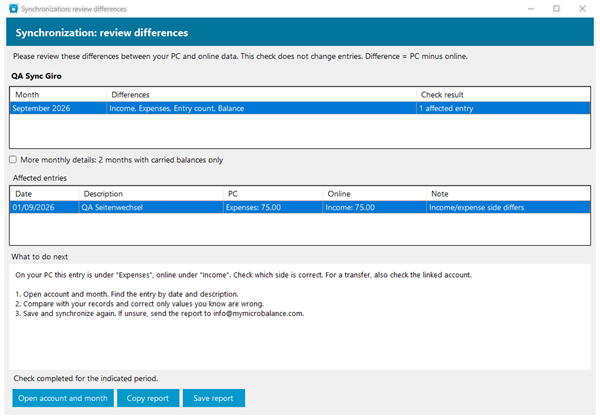
To investigate further, you can open the affected account and month directly. Clear guidance helps you compare transactions by date, description, amount and whether they are income or expenses. You can then correct entries that are clearly wrong, save your changes and synchronise again.
When you move a single recurring transaction to another date using "Today only", the change is now applied correctly. Earlier and future transactions retain their schedule, including series at the end of the month. This prevents the additional entries that could previously remain on the original date.
Further fixes apply to series with individually specified dates: a custom list of dates rather than a fixed daily, weekly or monthly interval. Deleted or rescheduled dates are processed correctly and saved on the server. The remaining transactions retain their amounts, assignments and links.
This prevents the duplicate transactions or transactions reappearing after synchronisation that were caused by these errors. Existing incorrect or duplicate transactions are not automatically cleaned up by these fixes.
Tidying up your groups is easier too. Unnecessary updates have been reduced, particularly when there are many groups, so creating, editing and deleting groups involves less waiting.
When you delete a group and move its transactions to another group, carried-forward balances and subsequent balances remain correct. Incorrect error messages about recurring transactions in other, unaffected groups no longer appear either. You can adjust your spending structure without then having to investigate supposed assignment errors.
Happy saving from the MyMicroBalance team!


 1
1 2
2 3
3 4
4

