

Product update · Windows version 6.5.2
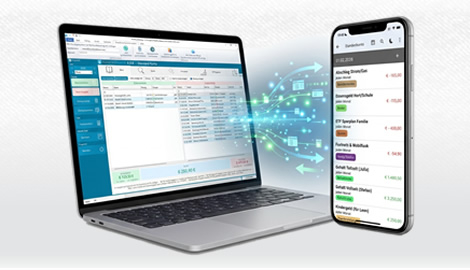
Your budget planner should make everyday life easier. Version 6.5.2 makes syncing between your PC and smartphone easier to understand: spot differences more quickly, leave certain decisions until later and get clearer guidance when your data does not match.
A purchase recorded on the go, monthly planning on your PC, a transfer into savings: when you use your budget planner across devices, you want to focus on your finances. This update improves how MyMicroBalance handles sync issues and protects against a hidden problem when switching between accounts.
Linked transactions connect entries in two accounts. The choice between Copy and Transfer matters: a copy keeps an expense as an expense in the other account. A transfer creates an income entry on the other side, for example when moving money from your everyday account into savings.
If your PC and Smartphone App use different settings, MyMicroBalance explains both choices. It also makes an important point clear: this setting applies to all linked transactions in your file and the associated user account, not to individual transactions.
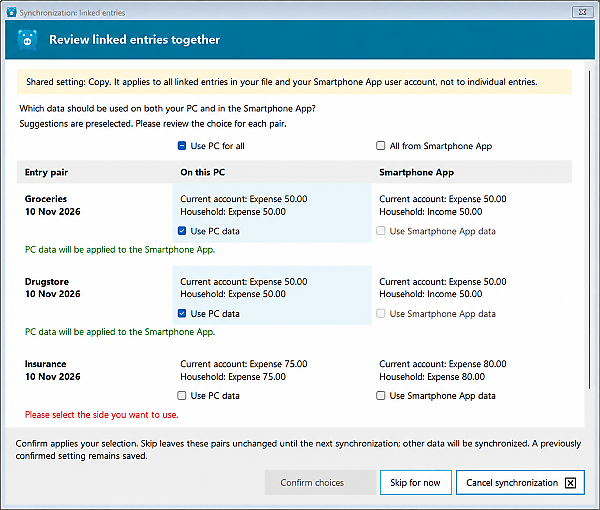
The next view brings affected pairs together. Compare accounts, amounts and income or expense entries side by side, then choose which data to use. A shared selection for the PC or app side saves clicks where those pairs can be applied. Cases that still need a decision remain visible.
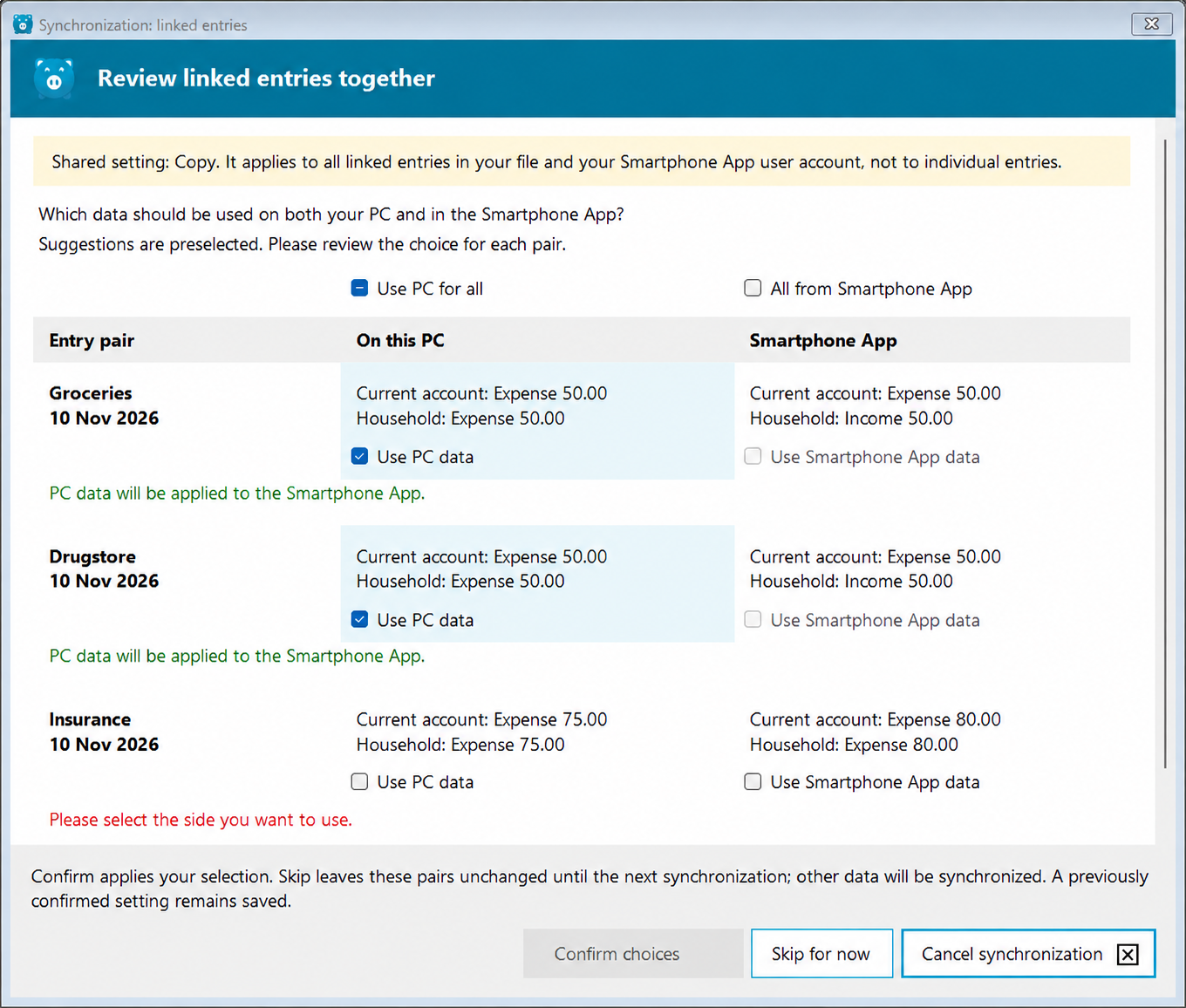
Review related transactions together instead of answering a long series of individual questions. Editorially prepared view with example data.
Just want to transfer your latest spending and do not have time to investigate a question? Choose “Skip for now” to postpone the setting decision or the review of linked pairs. Other data continues to sync, provided no separate error prevents it.
The deferred pairs are not automatically corrected. You can review them again during your next sync. If you skip the initial Copy or Transfer question, the pair-review window will not open during that run. If you have already confirmed a setting, that choice remains saved.
A closing message tells you when something still needs attention. You know what has been completed and which decision remains open.
Version 6.5.2 triggers recalculation of online balances more deliberately after relevant transactions have been transferred. When it detects a balance discrepancy, it also recalculates and checks the monthly figures again. This can resolve differences caused solely by outdated totals.
If a difference remains, the improved diagnostic view shows where to look. Affected transactions appear directly below the relevant month. Later months that only carry forward an earlier difference can be expanded when needed, so you do not have to investigate the same discrepancy repeatedly.
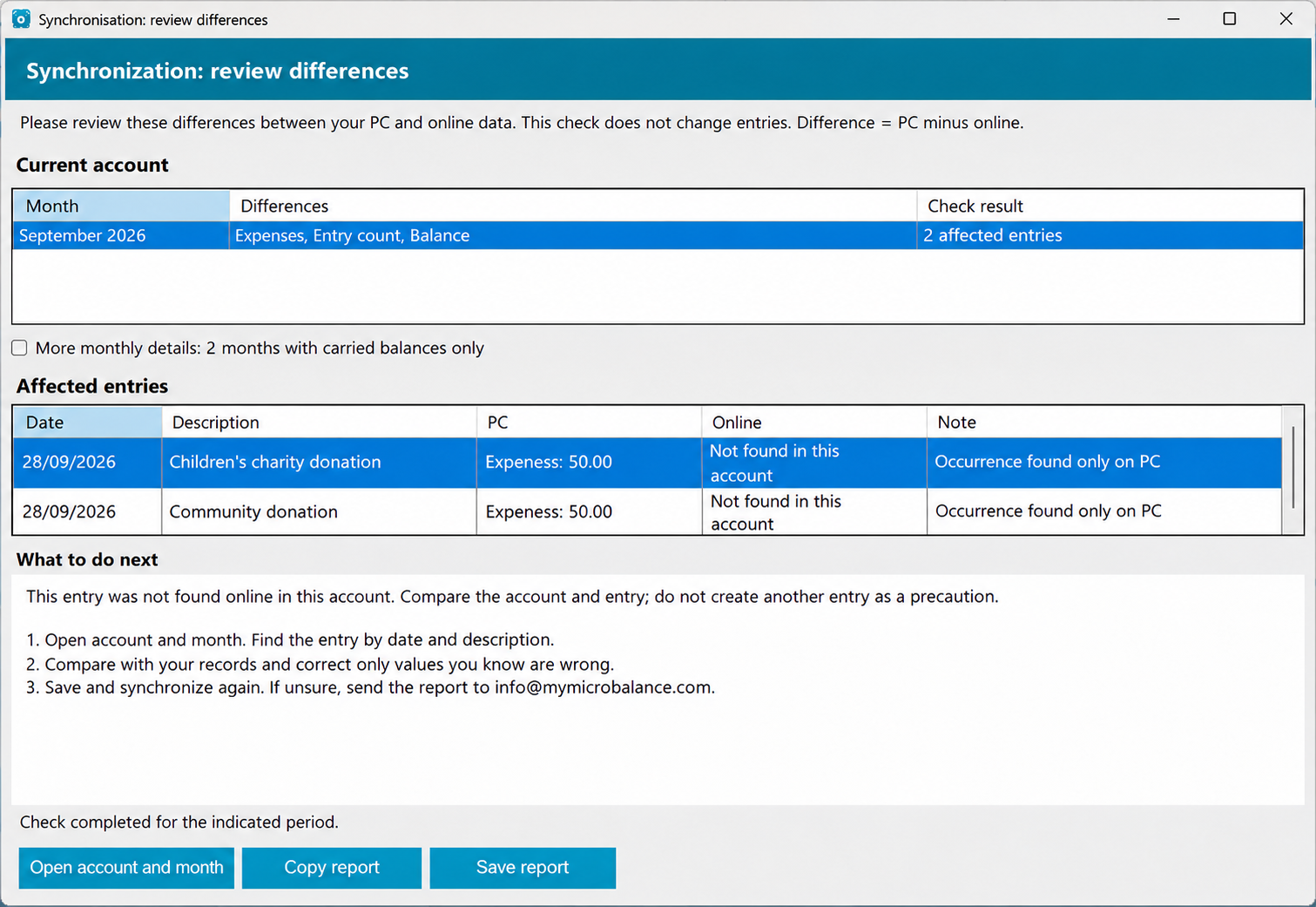
The diagnostic view identifies the affected month and individual transactions. You can copy or save the report. Editorially prepared view with example data.
For certain recognised problems, MyMicroBalance also offers a targeted repair that you can accept or decline. Where an automatic correction cannot be made safely, the differences remain visible for you to review. There is no need to delete and recreate transactions on a hunch.
Editing a transaction in your household account and about to switch to savings? MyMicroBalance now alerts you to the transaction window that is still open. You can return to the entry or confirm the account switch. Confirming closes the entry window and discards unsaved input; previously saved transactions remain unchanged.
This prevents an unfinished edit from accidentally being saved in the wrong account. It is a small change with a practical benefit for anyone managing several accounts.
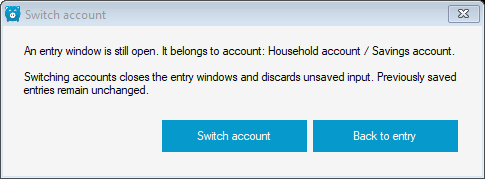
Finish with the open entry before switching accounts. Original dialog with example accounts.
More robust annual views: Old recurring entries with no occurrences in the selected year no longer block the newer annual statistics and charts because of missing category assignments. This is particularly helpful for budget files built up over many years. Relevant entries within the selected year still need valid categories.
Know which file is open: After opening a file, the window title shows the path of the file actually in use. If you keep several budget files, it is easier to see which one you are working on.
This release brings clarity where it matters: less guesswork when figures differ, easier decisions and extra protection when working across multiple accounts.
Save your budget file, make an additional backup and close MyMicroBalance before updating. Then install the new Windows version and open your usual budget file.
Download MyMicroBalance 6.5.2 for Windows
Syncing with the Smartphone App is a VIP feature. The improvements described here apply to MyMicroBalance 6.5.2 for Windows.

 1
 2
 3
 4


