

To get detailed help please click on one of the following topics. You can also scroll though the list to find new features and learn more about the budget planning tool MyMicroBalance.
First Steps
Analysis
Main User Interface
The export function saves income and expenditures from a MyMicroBalance balance file as a CSV file. You can then sort, filter, analyze, or archive the exported data in Microsoft Excel or another spreadsheet application. Exporting does not change any entries in MyMicroBalance.
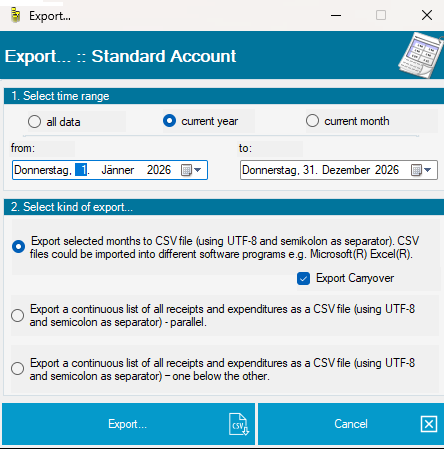
In the first section of the export window, specify which transactions should be exported. You can select all data, the current year, or the current month. Also check the from and to fields to make sure the complete intended period is included.
In the second section, choose how income and expenditures are arranged in the CSV file:
The monthly carryover is not included in either continuous-list layout. MyMicroBalance creates the CSV file in UTF-8 and uses a semicolon as the separator so that special characters and columns can be processed correctly by suitable applications.
Keep the original CSV file if you may want to import the raw exported data again or open it later with different settings.
For the correct display of special characters, columns, dates, and amounts, do not simply double-click the CSV file. Start Microsoft Excel first and select Data > From Text/CSV.


Review the preview before loading the data. Each field must appear in its own column. Also check that special characters, dates, and decimal amounts are displayed as expected.
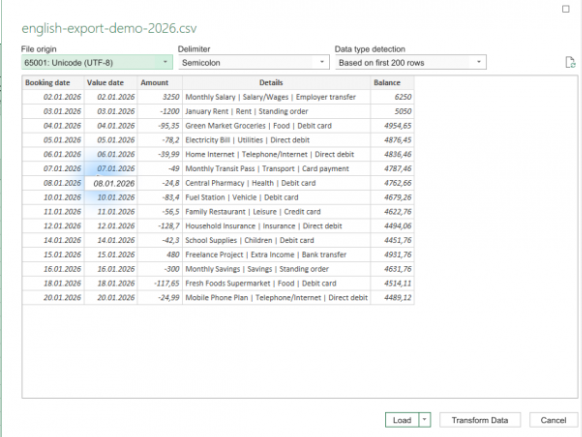
Select Load when the preview is correct. If dates or amounts are not interpreted as intended, select Transform Data first and assign the required data types before loading.
After opening the file, you can filter, sort, format, and analyze the data in Excel. Save the workbook in an Excel format such as .xlsx, or .xls for older versions. This preserves your formatting and changes and avoids repeating the text import the next time you open the workbook.


 1
1 2
2 3
3 4
4