

To get detailed help please click on one of the following topics. You can also scroll though the list to find new features and learn more about the budget planning tool MyMicroBalance.
First Steps
Analysis
Main User Interface
Administration of Categories lets you organize the categories in your household budget. Categories help you structure receipts and expenditures and find them later in Search, Statistics, Annual Overview, and charts.
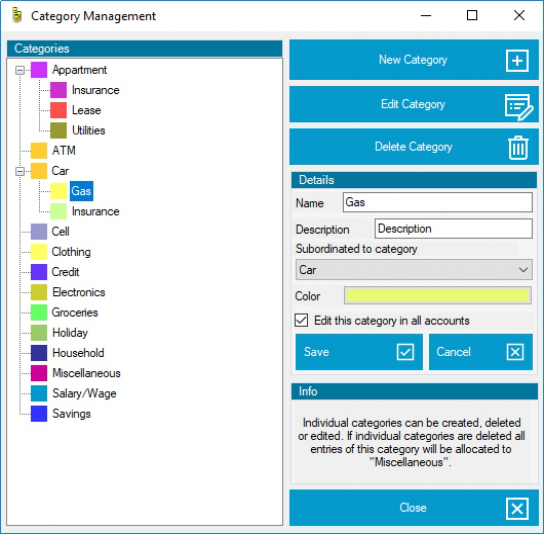
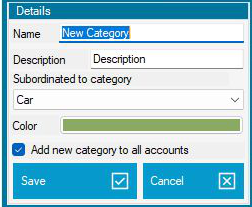
Categories can be nested. For example, create a main category named Car and add subcategories such as Fuel, Insurance, and Repairs.
When you add or edit an entry, select the appropriate category. This places the booking in the correct category in Search, Statistics, Annual Overview, and charts.
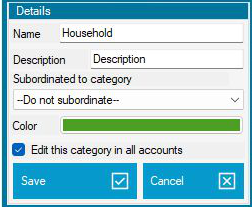
Select a category in the list and click Edit Category. You can also open it by double-clicking. Change the name, description, color, or parent category and save your changes.
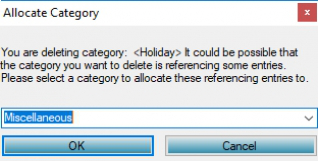
Deleting a category does not delete its existing entries. MyMicroBalance asks you to choose a replacement category so that the bookings remain assigned to a valid category.
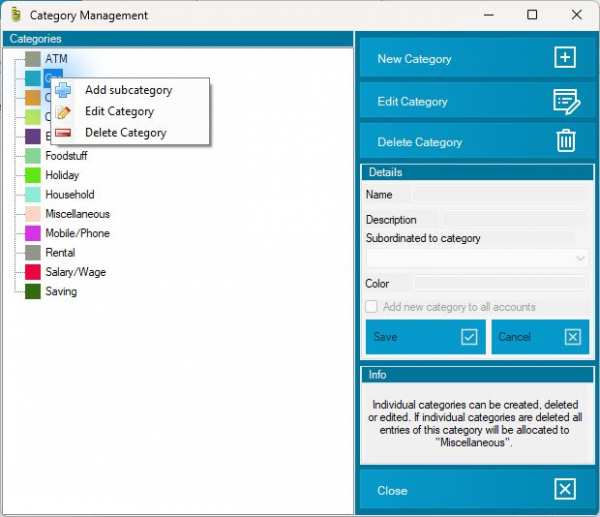
Right-click a category in the tree view to work more quickly. Depending on the selected item, the context menu lets you add a subcategory, edit the category, or delete it.
Select a parent category first, or right-click an existing category, to create the new category directly below it. This is useful when you want a more detailed structure for particular expenditures.
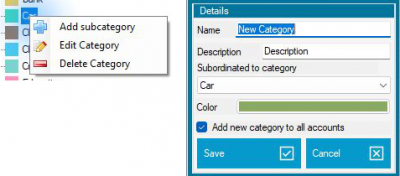
With a VIP license, you can create, edit, or delete categories for all existing accounts at the same time. When saving, choose whether the change should apply only to the current account or to every account in the file.

 1
1 2
2 3
3 4
4