Budget Planner MyMicroBalance Online Help

To get detailed help please click on one of the following topics. You can also scroll though the list to find new features and learn more about the budget planning tool MyMicroBalance.

&nbps;

VIP Synchronization

Subtitle: Transfer Data to Your Phone | Synchronize Data Between Computers

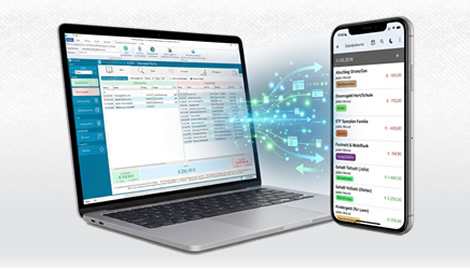
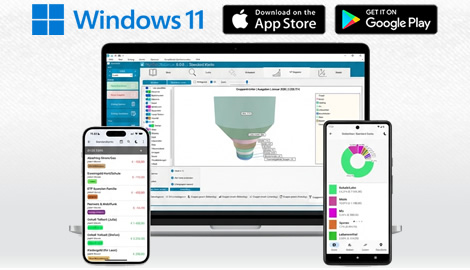
VIP Synchronization lets you synchronize entries between MyMicroBalance on your PC and the MyMicroBalance app, as well as between multiple computers. This is useful if you enter transactions while away from your computer and want to continue working with them later on your PC.

Synchronization requires a VIP license key on the PC and a user account in the MyMicroBalance app. For more information about the app, see MyMicroBalance Budget Tracker App.

Enter your user details on the PC

  1. Create a user account in the MyMicroBalance app.
  2. Open your MyMicroBalance file on the PC.
  3. Open Smartphone Synchronization in the main menu.
  4. Enter the login details for your MyMicroBalance app account.
  5. Click Synchronize Now.

mymicrobalance-en-synchronization-login-20260802.png

Synchronize automatically

With Synchronize every 5 min., MyMicroBalance can update the data regularly. This can also trigger an update after you open a balance file.

MyMicroBalance displays a progress bar while synchronization is running.

mymicrobalance-en-synchronization-progress-20260802.png

A confirmation is displayed after synchronization has completed successfully.
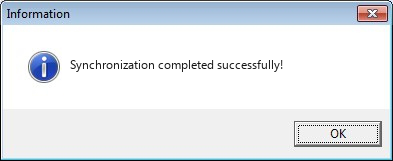
mymicrobalance-en-synchronization-complete-20260802.png

Synchronize data between multiple computers

  1. First synchronize the current file from the first computer with your MyMicroBalance app account.
  2. Create a new, empty file on the other computer and save it under its own name.
  3. Enter the login details for the same MyMicroBalance app account there as well.
  4. Click Synchronize Now to download the data.

Reset synchronization

If values or balances on the PC and in the online account do not match plausibly, use Reset Synchronization. This rebuilds the synchronization. Save your file and create a backup before making major corrections.

Important information

  • If the same entry is edited on multiple devices, the version synchronized last can overwrite the other version.
  • If an entry is deleted on one device and then synchronized, the deletion is also transferred to the other devices.
  • After larger synchronization processes, briefly check the balance, month, and categories.
  • If you no longer have access to your app account, or if you need a refund, account deletion, or manual account review, contact the MyMicroBalance Support Team directly at .