

To get detailed help please click on one of the following topics. You can also scroll though the list to find new features and learn more about the budget planning tool MyMicroBalance.
First Steps
Analysis
Main User Interface
Budgets let you plan how much money should be available for specific categories each month. MyMicroBalance uses a flexible approach with a second account and the Reference Account for Posting feature.
This lets you use the envelope method: your actual money remains visible in your main account, while the budget account shows how much of the planned amounts is still available. A paid VIP license key is required to use reference postings.
Create a separate account named Budget. In this account, enter your planned monthly budgets as receipts. Continue to record the actual expenditures in your main account and also post them to the budget account.
This means you enter each expenditure only once, while the budget account immediately shows how much remains in each budget envelope.
Copying the categories from the main account means you do not need to create categories such as Groceries, Leisure, Car, or Insurance twice.
Switch to the new budget account and enter the planned monthly budgets as receipts. For example, a grocery budget can be entered as a receipt named Grocery Budget, assigned to the Groceries category, with an amount of EUR 300.00.

For recurring monthly budgets, it is best to set a monthly interval for the first day of the month. The planned budget is then automatically applied again each month.
Continue to enter your actual everyday expenditures in your main account. Select the appropriate category, such as Groceries for a supermarket purchase.
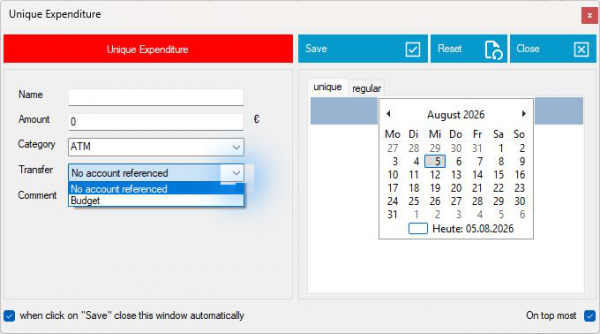
Select the budget account as the Reference Account for Posting in the entry window. MyMicroBalance then creates a corresponding copy of the expenditure in the budget account.
Important: Do not use the Counter Entry feature for this budgeting method. A counter entry would treat the expenditure as a receipt in the budget account and would therefore produce an incorrect budget result.
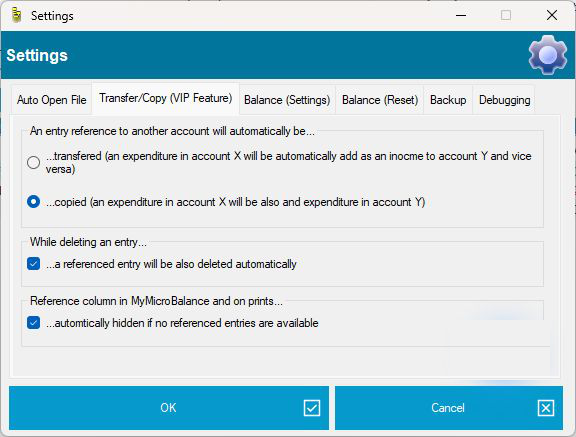
In Settings, open Transfer/Copy (VIP Feature) and select the copy option. This keeps a referenced expenditure as an expenditure in the budget account.
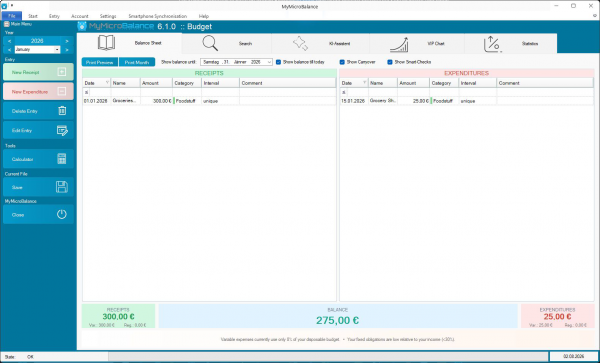
In the budget account, the planned budgets are displayed on the receipts side and the posted expenditures on the expenditures side. The balance shows how much budget is still available.
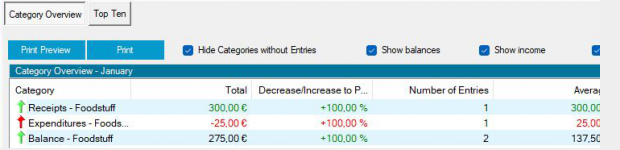
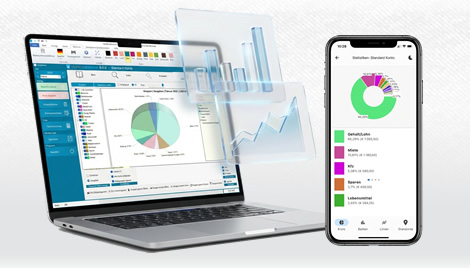
The analysis also shows which categories have already used a large part of their budget and where there is still room available.

 1
1 2
2 3
3 4
4