

To get detailed help please click on one of the following topics. You can also scroll though the list to find new features and learn more about the budget planning tool MyMicroBalance.
First Steps
Analysis
Main User Interface
Search Data lets you find receipts, expenditures, and recurring entries in your MyMicroBalance file. You can combine text, amounts, categories, and any date range, and MyMicroBalance immediately calculates the total, number, and average of the results.
Click the Search tab at the top of the MyMicroBalance main window. Define the search criteria on the left; matching entries appear on the right.
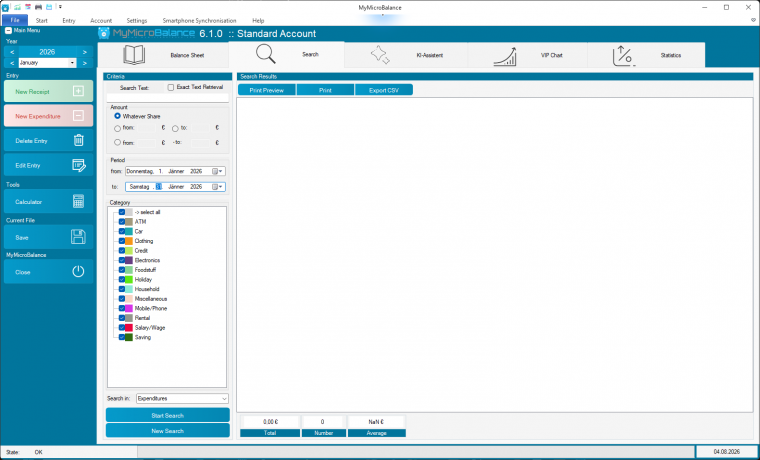
Example: searching for Rent displays matching bookings and automatically calculates the total, number, and average at the bottom.
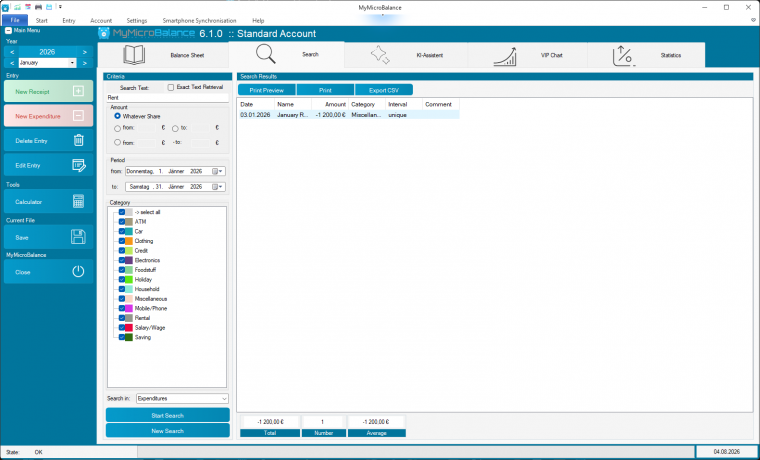
Tip: if you do not remember the exact name, disable exact text search and enter part of the word. A search for Rent can, for example, also help locate entries such as Rental Car. Do not add wildcard characters such as * or %; MyMicroBalance matches partial text automatically when exact text search is disabled.
In the Amount section, restrict the search to a specific amount or range, or select Any amount to include every value. In the Period section, choose a start and end date. You can search a single month, a quarter, a year, or any custom period.
This combination is useful when you want to analyze all grocery expenditures in one month or all phone costs during the previous six months.
Important: the start date must be earlier than or equal to the end date. If the start date is later than the end date, the period is invalid and the search cannot return results. Correct both dates and start the search again.
In the Category section, choose which categories should be included. You can search all categories or select individual categories and subcategories.
If Search Text is empty, you can also use Search as an analysis tool. MyMicroBalance lists every entry that matches the date, amount, and category criteria and calculates the total, number, and average.
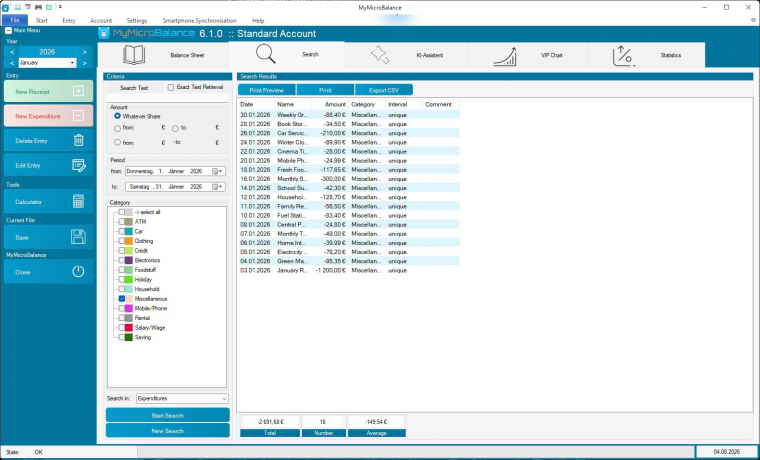
The result list displays the date, name, amount, category, and interval of each matching entry. The following figures appear below the list:
Use the buttons above the result list to open Print Preview, print the results, or export them as a CSV file.
You can select several rows in the result list. Use the standard Windows selection methods: hold Ctrl to add individual rows or Shift to select a continuous range.
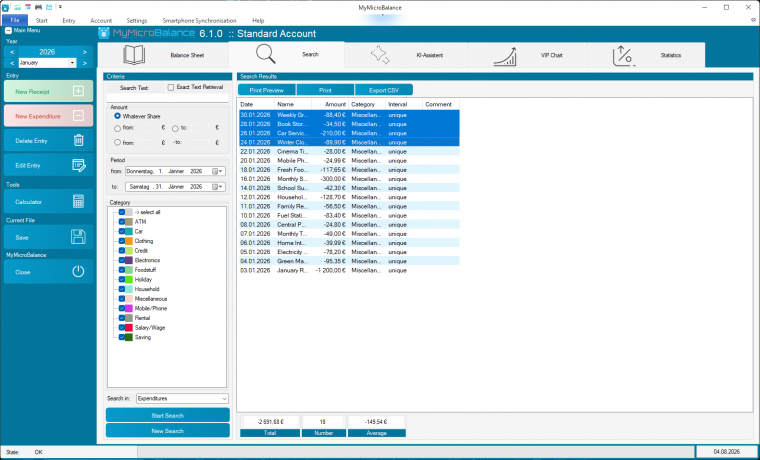
When several results are selected, click Delete Entry to remove them. Check the selection carefully because this deletes the actual entries from your Balance Sheet. Save the file afterwards if the changes should be permanent.


 1
1 2
2 3
3 4
4