

To get detailed help please click on one of the following topics. You can also scroll though the list to find new features and learn more about the budget planning tool MyMicroBalance.
First Steps
Analysis
Main User Interface
Balance Settings control how MyMicroBalance displays the Balance Sheet when you open a file and work with entries. The options mainly affect the initially displayed month, warnings for backdated entries, and category colors.
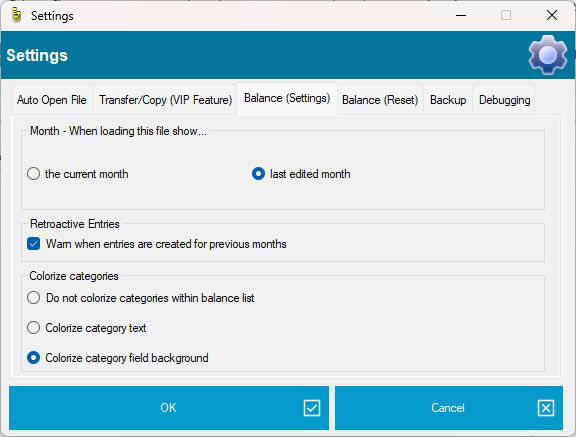
In the Month section, select which month MyMicroBalance should display automatically when you open the budget file.
Enable Warn when entries are created for previous months if MyMicroBalance should display a warning when an entry is assigned to an earlier month. This helps prevent accidental entries in the wrong period.
In the category-color section, choose whether categories are visually highlighted in the Balance Sheet.
To reset Balance options, open the Balance (Reset) tab. You can restore the default display settings without deleting the receipts and expenditures stored in your file.
Click OK to apply your changes. Click Cancel to close the dialog without saving them.


 1
1 2
2 3
3 4
4