

To get detailed help please click on one of the following topics. You can also scroll though the list to find new features and learn more about the budget planning tool MyMicroBalance.
First Steps
Analysis
Main User Interface
Print Annual Report creates a printout or print preview for the selected year. MyMicroBalance automatically uses the year selected in the Main Menu when it opens the print dialog.
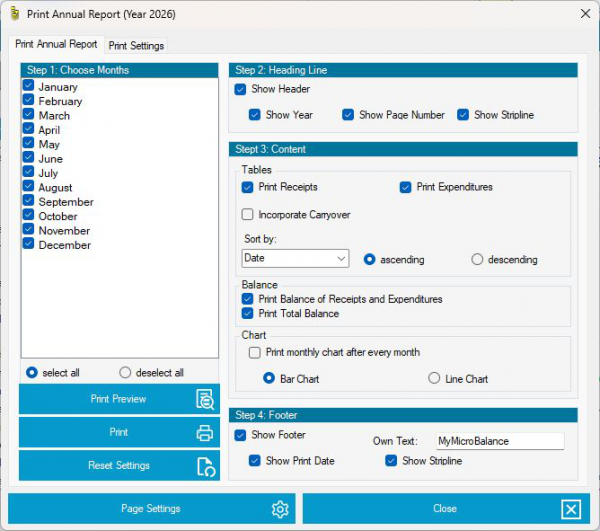
Click Print Preview to check the result before printing. Click Print to send the annual report to the printer. MyMicroBalance saves these report settings with the Balance Sheet file.
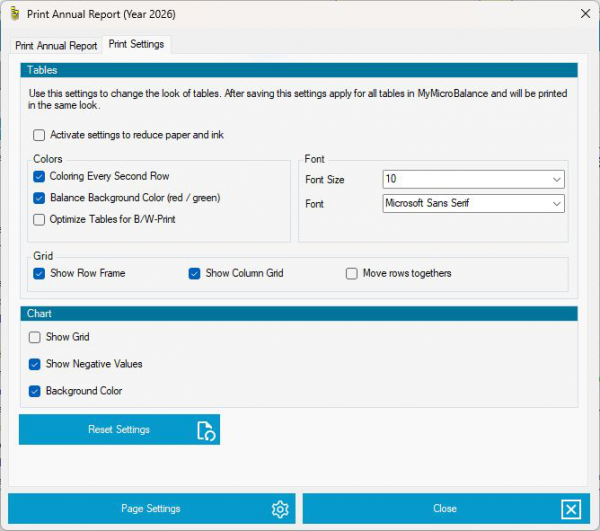
Open the Print Options tab to change the appearance of tables and charts. Available settings include colors, font size, font, row borders, column grid, compact rows, chart grid, negative display, and background color.
Enable the paper- and ink-saving option to make printouts more compact and reduce paper and printer-ink use. You can also set the font and font size manually to fit as many entries as possible on an A4 page.
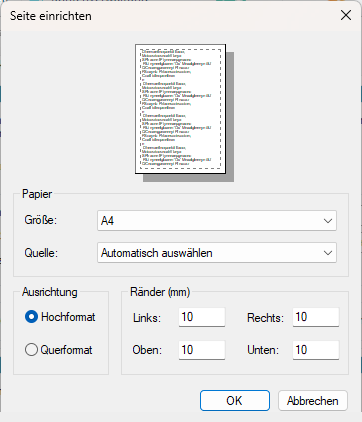
Click Page Setup to define the paper size, paper source, orientation, and margins. These settings are useful when adapting the report to A4 paper in portrait or landscape orientation.
Use Print Preview before the first printout. It immediately shows whether all required months, tables, balances, and charts are included and whether the page settings fit the selected paper format.

 1
1 2
2 3
3 4
4