Budget Planner MyMicroBalance Online Help

To get detailed help please click on one of the following topics. You can also scroll though the list to find new features and learn more about the budget planning tool MyMicroBalance.

&nbps;

Backups

Subtitle: Automatic backups | Restore balance files

MyMicroBalance can automatically create backup copies of your balance file. If the current file can no longer be opened correctly after a power failure, file damage, or an accidental change, you can restore an earlier version.
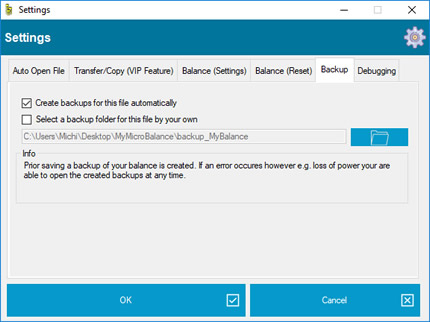
Enable automatic backups

  1. Open the MyMicroBalance file for which you want to configure backups.
  2. Click Settings at the top of the main window.
  3. Open Settings and select the Backup tab.
  4. Enable Create backups for this file automatically.
  5. To use a separate storage location, also enable Select a backup folder for this file by your own and choose the required folder.
  6. Confirm the settings with OK.

backup.jpg

The setting applies to the currently open balance file. If you use several balance files, configure the required backup setting separately for each file.

When backups are created

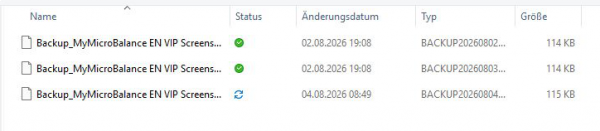
MyMicroBalance creates a backup before saving the balance file. Several restore points can therefore be present in the backup folder. Check the file name and modification date when choosing the most suitable version.

Only a limited number of automatic backup generations are retained. Once an older backup has already been overwritten, MyMicroBalance cannot recreate that earlier state. For important milestones, keep an additional copy outside the automatic backup sequence.
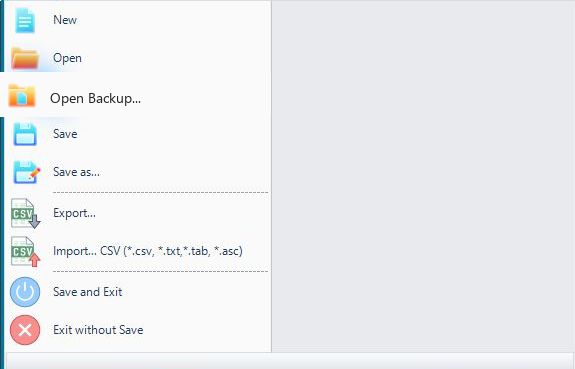
Open a backup and restore the balance file

  1. Click File in the upper-left corner.
  2. Select Open Backup....

mymicrobalance-en-file-menu-open-backup-clean-20260804.png

  1. Open the folder in which the backup files are stored.
  2. Select the required restore point. Backup files use an extension containing .backup.
  3. Click Open.

mymicrobalance-en-backup-file-list-clean-20260804.png

Check the restored file and save it under a new name

  1. After opening the backup, check the accounts, balances, and most recently entered transactions.
  2. If the backup contains the expected data, click File and then Save As....
  3. First save the restored balance under a new file name as an .mmb file. Do not overwrite the damaged source file until the restored version has been checked completely.

Missing accounts or older data

A backup always represents the complete state of the balance file at the time it was created. If an account, transaction, or setting is missing in that restore point, it may have been created or changed later. Open an earlier or later backup and compare the data before saving the restored file.

Recommendations

  • Choose a backup folder that you can find easily.
  • Keep important copies on another drive or in a reliably protected cloud folder.
  • Before attempting further recovery, copy the damaged file and all available backups.
  • The MyMicroBalance Support Team cannot centrally restore balance files or forgotten passwords. If none of the available backups can be opened, leave the original files unchanged and contact .