

To get detailed help please click on one of the following topics. You can also scroll though the list to find new features and learn more about the budget planning tool MyMicroBalance.
First Steps
Analysis
Main User Interface
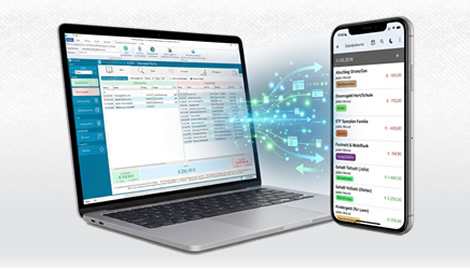
Print Preview and Print Month buttons in MyMicroBalanceThe Balance Sheet is the central monthly view in MyMicroBalance. It shows the receipts and expenditures for the selected month, the balance, carryovers from previous months, and the split between variable and regular entries.
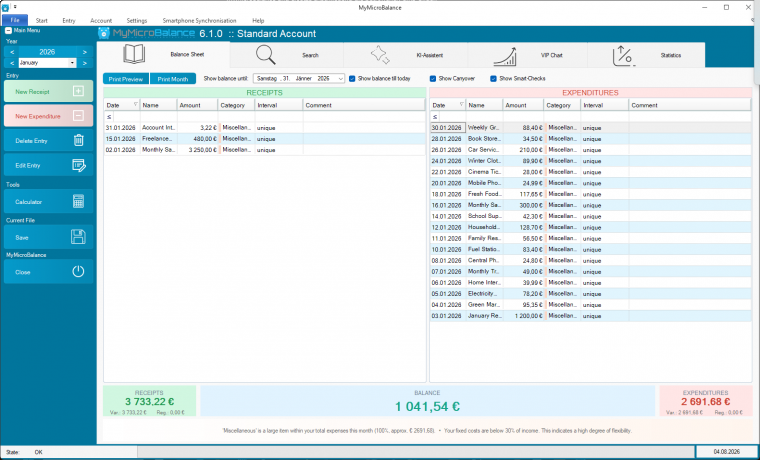

When Show balance till today is enabled for the current month, MyMicroBalance calculates the Balance Sheet only up to the selected day. Move the mouse over one of the large summary panels at the bottom, such as Receipts, Expenditures, or Balance. The information window also shows the total for the complete month, the amount up to today, and the future balance for entries that are still ahead.
This lets you see how much of the month has already been reached and which receipts or expenditures are still due without changing the filter. If no information window appears, make sure that the current month is selected and Show balance till today is enabled.
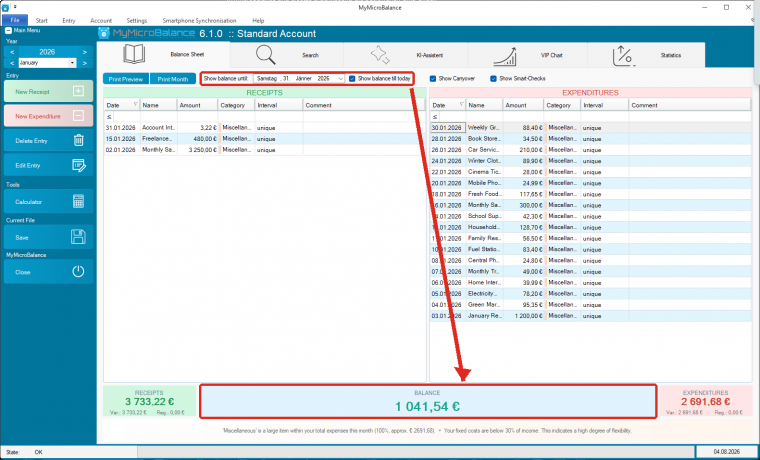
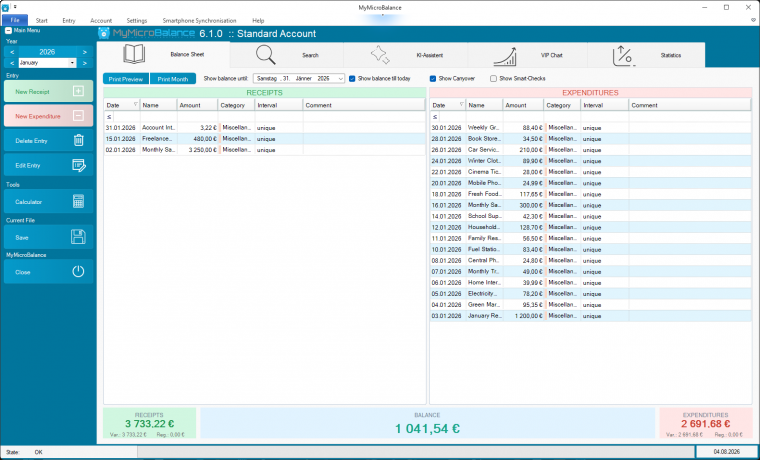
Use Show Smart-Checks to control whether the intelligent notes and analyses at the bottom of the Balance Sheet are visible. Clear the checkbox to hide this area and give the receipt and expenditure lists more vertical space.
Hiding Smart-Checks does not change any entries or calculations. It only changes the layout. Select the checkbox again to display the Smart-Checks.
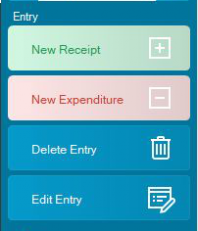
Use the buttons in the Main Menu to add a new receipt or expenditure, edit an existing entry, or delete an entry. Newly added entries are highlighted in bold so that you can quickly check whether the entry was inserted in the intended location.
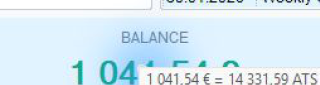
If you have configured a second currency under Currency, MyMicroBalance displays it as additional information when you move the mouse over an entry or a balance.


 1
1 2
2 3
3 4
4
