

To get detailed help please click on one of the following topics. You can also scroll though the list to find new features and learn more about the budget planning tool MyMicroBalance.
First Steps
Analysis
Main User Interface
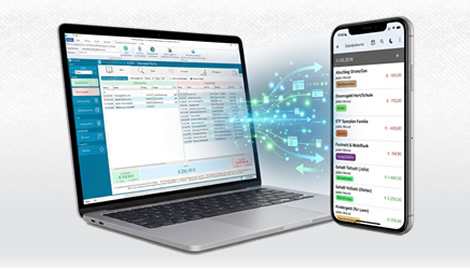
Use New Receipts or New Expenditure to add a new entry to your MyMicroBalance balance file. Receipts are shown on the left side of the balance view, expenditures on the right side.
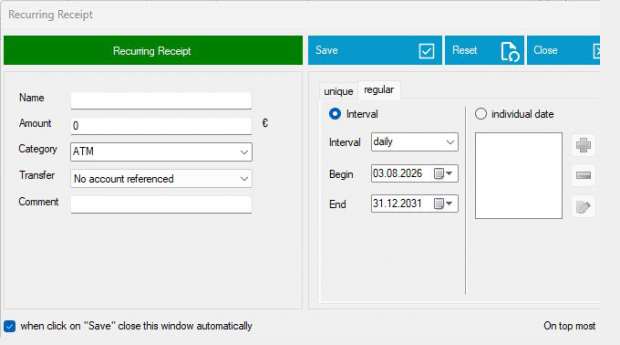
Use a clear name so you can recognize the entry later, for example shopping, rent, salary or hairdresser. If similar entries already exist, MyMicroBalance can suggest matching names and groups. This helps you keep the balance file consistent and saves time when entering recurring expenses.
Enter the amount as a positive value. Expenditures are also entered as positive amounts; you do not need to type a minus sign. MyMicroBalance places the entry on the correct side depending on whether you clicked New Receipts or New Expenditure.
Select the date on which the receipt or expenditure occurred. Then choose the matching group so your statistics, search results and charts remain meaningful.
If an entry occurs regularly, choose an interval such as monthly or yearly. MyMicroBalance can then create the matching future entries according to the selected interval.

 1
1 2
2 3
3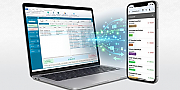 4
4