

To get detailed help please click on one of the following topics. You can also scroll though the list to find new features and learn more about the budget planning tool MyMicroBalance.
First Steps
Analysis
Main User Interface
Open an existing balance file if you have already created a MyMicroBalance file with the extension .mmb or restored one from a backup.
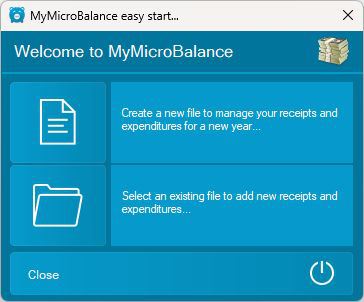
If Windows associates .mmb files with MyMicroBalance, you can also open a balance file by double-clicking it in File Explorer. If Windows asks you to choose an app or the double-click does not work, open the file from the start window or select File and Open in MyMicroBalance.
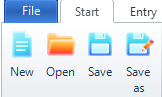
If MyMicroBalance is already open, select File and then Open. You can also use the Open button in the ribbon.
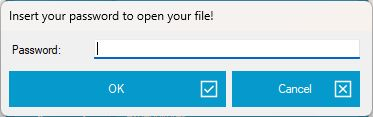
If the balance file is password-protected, MyMicroBalance asks for the password when you open it. The file cannot be opened without the correct password. The MyMicroBalance Support Team cannot centrally recover a forgotten password.


 1
1 2
2 3
3 4
4