

To get detailed help please click on one of the following topics. You can also scroll though the list to find new features and learn more about the budget planning tool MyMicroBalance.
First Steps
Analysis
Main User Interface
After starting MyMicroBalance, use the MyMicroBalance easy start... window to create a new balance file or open an existing one. This takes you directly to your budget planner so that you can continue recording income and expenditures.
MyMicroBalance can check at startup whether a new version is available. When an update is found, the program informs you and links to the update page on the MyMicroBalance website.
When MyMicroBalance finds a new version, a notification appears. Use the displayed link or arrow to open the update page.
...
Show full article >VIP Category Editing lets you create, edit, or delete categories not only in the currently open account but, when required, in all existing accounts in your file.
This saves time if you work with several accounts and want to use the same category structure in all of them. The feature is available with a VIP license key.
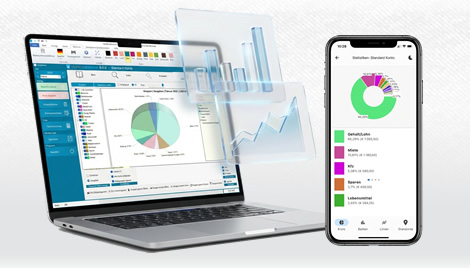
VIP Charts let you analyze your receipts, expenditures, balances, and categories graphically. A month-end balance shows the current result, but charts make it easier to see where money was spent and how individual months differ.
The chart features are available with a VIP license key. They are especially useful for recognizing trends, major areas of expenditure, and differences between...
Show full article >VIP Inline Edit lets you edit certain values directly in the Balance view without opening the complete entry window each time. This saves time when you need to correct or rename several entries one after another.
This feature is available with a VIP license key.
If you use many columns, long entry descriptions, or multiple categories, the Balance view can quickly require more space. The VIP feature More Space, Better Overview lets you adjust the layout so that receipts and expenditures remain easier to read.
This feature is especially useful if you have added custom balance columns and still want...
Show full article >Right-click any menu icon to copy it to the Quick Access Toolbar at the top. This lets you create your own compact menu containing exactly the functions that you use most often.
If you then minimize the main menu by right-clicking it and selecting Minimize the Ribbon, the complete screen space is available for the receipts and expenditures windows. Your changes are...
Show full article >
 1
1 2
2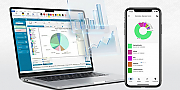 3
3 4
4