

To get detailed help please click on one of the following topics. You can also scroll though the list to find new features and learn more about the budget planning tool MyMicroBalance.
First Steps
Analysis
Main User Interface
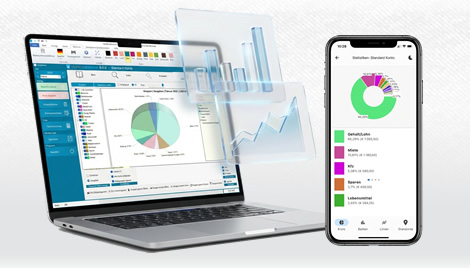
Charts make receipts, expenditures, carryovers, and individual categories visible at a glance. In the current version, open the Chart tab. Depending on your license and selected view, MyMicroBalance provides bar, line, and pie charts as well as additional VIP analyses.
Styles changes the colors of the MyMicroBalance interface. This helps you distinguish several balance files visually or adapt your household budget to your preferred appearance.
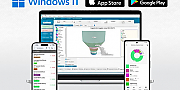
This page explains the most important areas of the MyMicroBalance user interface. It helps you add receipts and expenditures, edit entries, and quickly find the functions you use in everyday budget planning.
The Main Menu contains the functions that you will use most often while working with your Balance Sheet.
...
Show full article >Print Preview and Print Month buttons in MyMicroBalanceThe Balance Sheet is the central monthly view in MyMicroBalance. It shows the receipts and expenditures for the selected month, the...
Show full article >The Statistics tab analyzes entries for the month currently selected in the Main Menu. You can switch between Category Overview and Top Ten without configuring a separate report.
The analysis always uses the year and month selected on the left.
Change Password lets you protect an unsecured MyMicroBalance file, replace an existing password, or remove password protection.
Column Property Management adds custom fields to your MyMicroBalance file. You can use these fields to store comments, quantities, foreign currencies, or calculated values together with your receipts and expenditures.

 1
1 2
2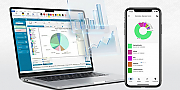 3
3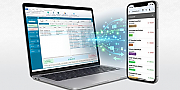 4
4
